P Publer

Content workflow

Make the publer media library part of your posting workflow

The publer media library is an entry point for keeping reusable images and videos close to your publishing work. Use it to prepare assets; use the composer when you need to write and publish a post.

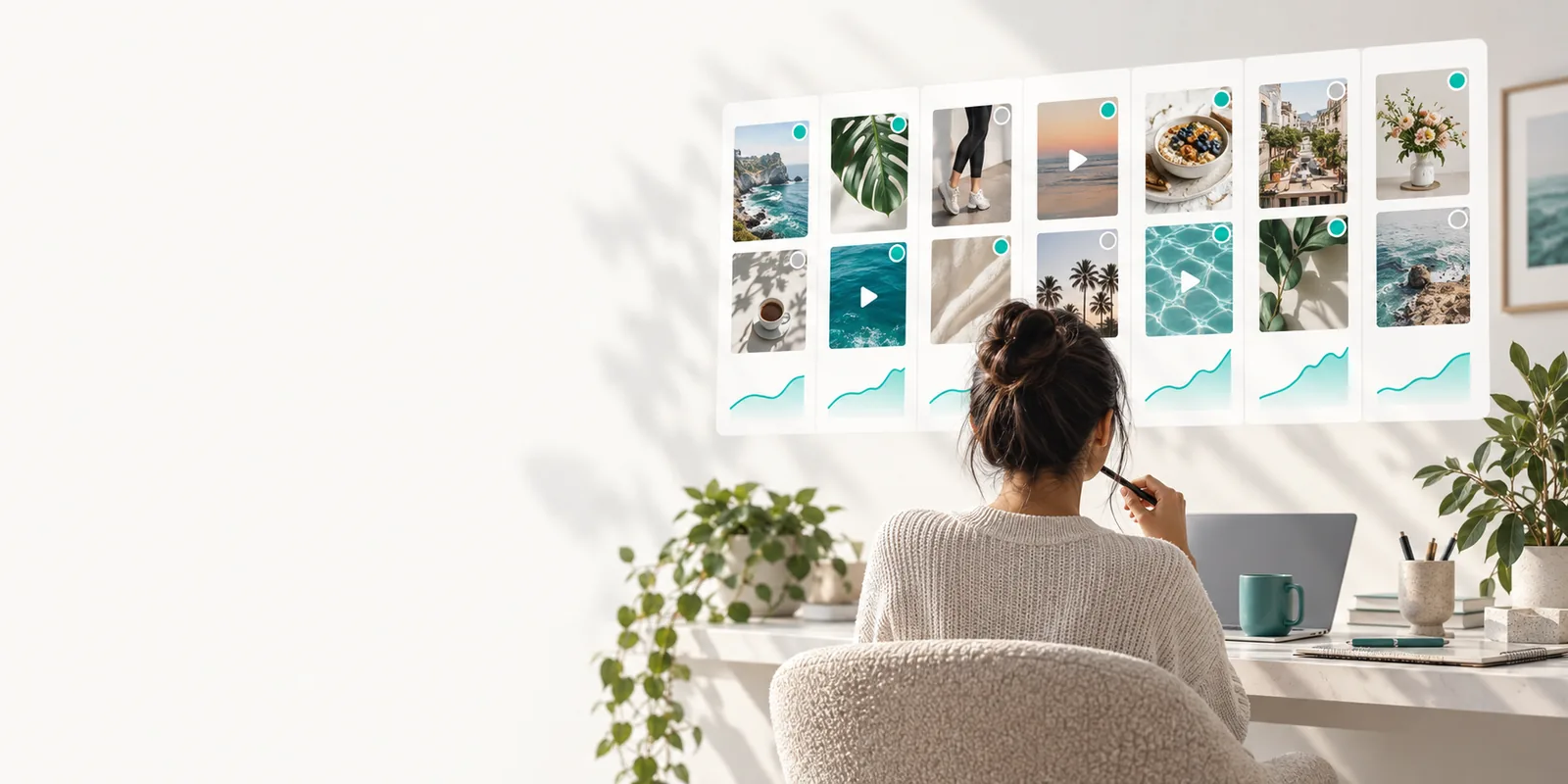
Publer social content workflow illustration

This entry point vs the general one

Think of the library as a place to find media and the general composer as a place to assemble a post. These related workflows help when an asset is only one part of the job.

The 3 things only it does

The media library focuses on assets before they become part of a specific post. That distinction matters when Publer content uses the same visual more than once.

  1. 1

    Keep media available

    Place a reusable image or video where you can look for it during later post preparation. A composer centers the post being written; a library centers the asset you may use again.

  2. 2

    Find the right asset

    Review your available media before choosing a visual for a caption. Give files clear names before adding them so similar campaign images are easier to tell apart.

  3. 3

    Reuse without starting over

    Select an existing asset when it suits a new post instead of treating every composition as a fresh file hunt. Check that its format and message still suit the destination channel.

How to start

Start with one useful asset, but keep these boundaries in mind. The library can help you prepare media; it does not replace the decisions required to publish.

It cannot write the post for you

An image is not a caption, call to action, or complete publishing brief. Storing it does not establish what the post should say.

Workaround

Choose the asset first, then write platform-appropriate copy in the post composer.

It cannot make every file suitable

A saved file may still have the wrong crop, dimensions, length, or rights for its intended use. Availability is not the same as suitability.

Workaround

Check the destination channel's current media requirements and your permission to use the file before publishing.

It cannot publish by itself

Keeping media ready is a preparation step, not a publication event. Publer still needs a post assembled for the channel you intend to use.

Workaround

Open the composer, attach the selected asset, review the preview, and complete the publishing workflow there.

Limits

This comparison separates asset preparation from post composition. It describes the purpose of each entry point, not a guarantee that every media type works on every channel.

Media library
General post composer

Primary focus

Media library

Media you may want to use in future posts

General post composer

One post being assembled for publication

Best first action

Media library

Locate or add an asset you intend to reuse

General post composer

Choose a destination and develop the post

Caption writing

Media library

Not the main purpose of an asset collection

General post composer

Part of assembling the post

Media decision

Media library

Identify a candidate file

General post composer

Check that the chosen file works with this post

Channel requirements

Media library

Do not assume storage means channel approval

General post composer

Review the selected channel's requirements before publishing

Publication

Media library

Preparing an asset does not publish a post

General post composer

Complete the post's publishing workflow here

Put a reusable asset to work

Begin with media you have permission to use, then pair it with a clear message and check the destination before publishing. Keeping those steps separate makes a Publer workflow easier to review.

Explore media workflow
  • Start with one reusable file
  • Check its fit for the channel
  • Finish the post in the composer

Its own FAQ

It is the asset-focused part of a Publer posting workflow: a place to keep media available for later use. A stored image or video is not a finished post; you still need to choose where and how to use it.

No. The library is about reusable media, while a draft is an unfinished post with its own copy and publishing context. If you need to preserve the wording of a post, keep working with the draft rather than treating the asset alone as the whole post.

Do not assume that storing an asset publishes it. Select the media for a post, add the relevant copy, and review the destination's requirements in the composer before completing publication.

Confirm that you have the right to use it and that the visual still matches the message. Check the current channel requirements for format, crop, and other media restrictions, since a file being available in a library does not mean it fits every destination.

Start for free
Start for free